
GTA 6’s photo mode is called Photo Studio, and it is available from the very start of the game — no unlock, no mission requirement. Pause the game, choose Photo Studio (or press Square on PS5 / X on Xbox), and you get a free camera, depth of field, up to five placeable lights and a filter suite. Separately, your in-game phone has its own Camera app for quick shots and selfies, complete with poses and expressions. This guide covers both: how to open Photo Studio, what each of its five tabs does, how to take a selfie, where your photos end up, and the honest limits — including the big one, that Photo Studio cannot change the time of day or the weather.
The details below are drawn from the launch-week Photo Studio guides published by GameSpot and Beebom, cross-checked against each other and against the GTA6Info wiki and Sportskeeda’s feature list. Where those guides agree, we say so plainly; where only one guide documents a detail, we label it Reported.
Last updated: 23 November 2026.
At a Glance
- Photo Studio is GTA 6’s photo mode: pause the game and select it, or press Square (PS5) / X (Xbox) on the pause screen. It is available from Lucia’s prologue. (Confirmed: GameSpot, Beebom)
- It has five tabs — Camera, Effects, Lighting, Vehicle and Overlay — covering depth of field, up to five placed lights, vehicle lights, vignette and filters. (Confirmed: GameSpot; Beebom)
- You can hide your character from the shot, and hide the UI with Triangle (PS5) / Y (Xbox) for a clean capture. (Confirmed: GameSpot)
- Photo Studio works during cutscenes, with some functions restricted — they show as “Currently Unavailable”. (Confirmed: Beebom, GameSpot)
- It cannot change the time of day or weather, and it cannot pose characters. Set the scene first, then pause. (Confirmed: Beebom, GTA6Info)
- Selfies live on the phone: D-pad Up → Camera app → front camera, with poses, expressions and partner poses. Phone photos save to the in-game Gallery app. (Confirmed: Beebom, GameSpot, HappyGamer)
How to Open Photo Studio
- Pause the game — Options on PS5, Menu on Xbox.
- Select Photo Studio from the pause menu, or press the shortcut shown there: Square on PS5, X on Xbox.
- The scene freezes where you paused it. Compose, adjust, and capture with Save Photo — or hide the interface (Triangle / Y) and use your console’s own screenshot button for a completely clean frame.
Photo Studio is there from the moment you take control of Lucia in the prologue; nothing needs unlocking. You can also open it mid-cutscene, which is how players are capturing the story’s biggest moments — but expect limits there: some tabs and settings are restricted during scripted scenes and display as “Currently Unavailable” until you are back in free gameplay. (Confirmed: Beebom, GameSpot)
The Five Tabs, Explained
GameSpot’s rundown of Photo Studio documents five tabs. Here is what each one does, with the supporting detail the other guides agree on.
Camera
The framing tab. Move and reposition the camera independently of your character, rotate and zoom, and set the focus tools: depth of field (which you can also switch off entirely), aperture and focus distance, plus camera roll and composition grids for lining a shot up properly. This tab is also where you turn your character invisible — the cleanest way to capture a pure landscape or city shot with no protagonist standing in the middle of it. Two guides (Sportskeeda and gamer.org) also list a choice of eight aspect ratios for framing; treat the exact count as Reported, but expect aspect-ratio options here.
Effects
The image-grading tab: exposure, contrast, tint, bloom and related sliders. This is where a flat midday shot gets its mood — pull the exposure down and push the tint and a Vice City street starts to look like golden hour, even though the game’s clock has not moved.
Lighting
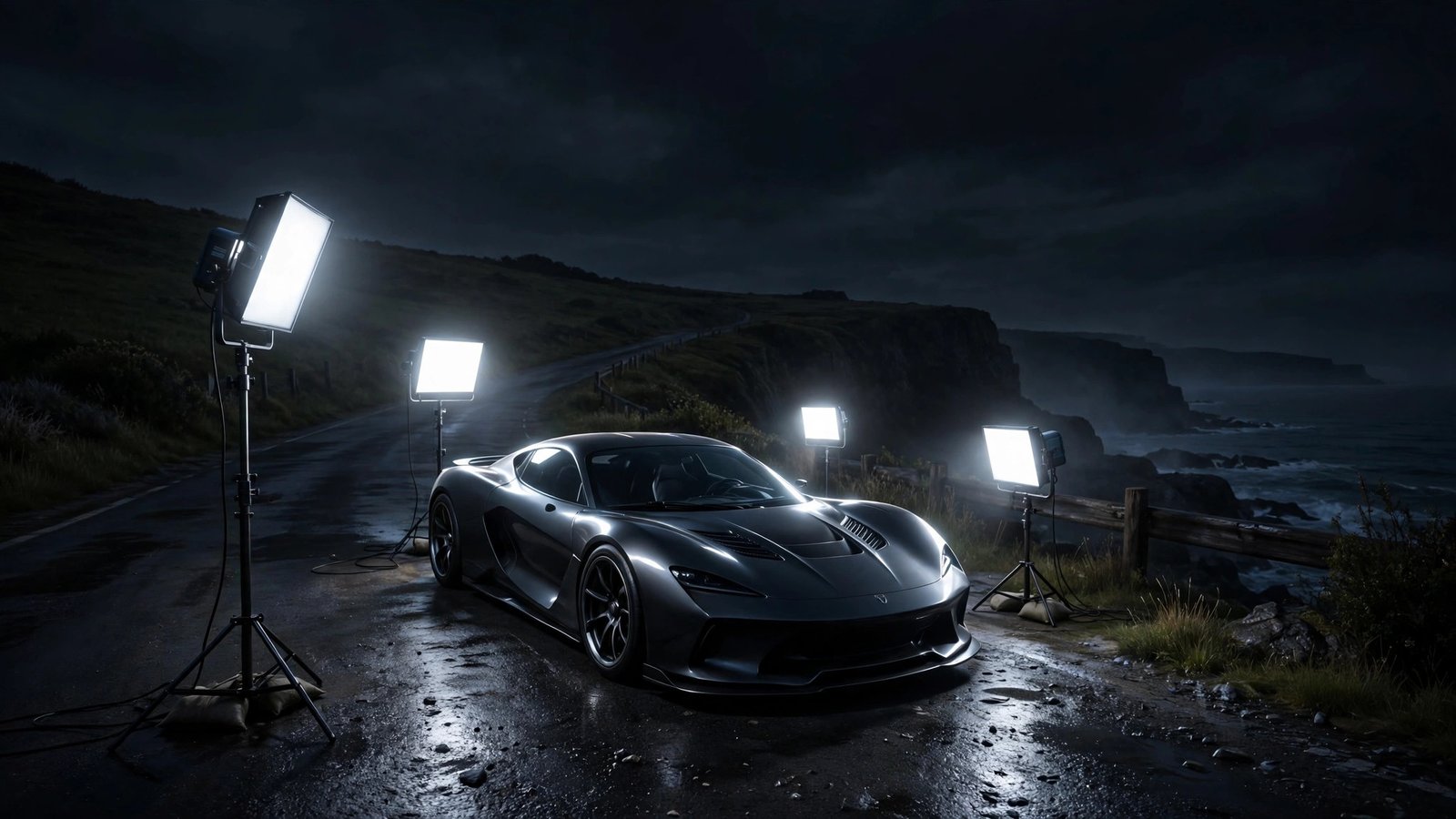
The tab that sets Photo Studio apart from a basic screenshot tool. You can place up to five light sources of your own in the scene and adjust each one’s colour, intensity and range. Presets include stage lights and camera flashes. Night shots are where this earns its keep: park a car on a dark Leonida road, add two or three placed lights, and you can build a studio look in the middle of nowhere. (Confirmed: GameSpot for the tab and presets; Beebom and Sportskeeda for the five-light count)
Vehicle
A small, specific tab: toggles for your vehicle’s lights. Use it to switch headlights and other vehicle lighting on or off for the shot without getting in and out of the car.
Overlay
Vignette and filter intensity, plus the filter styles themselves. GameSpot names three standouts: Cartoon Universe, a light cel-shaded look; Found Footage, grainy and glitchy like a recovered tape; and Pixel Art, a retro 8-bit treatment. One caution on numbers: the widely quoted 17 filters figure belongs to the phone’s camera (documented by Beebom), not to this tab — guides do not publish a confirmed filter count for Photo Studio itself, so we are not going to invent one.
How to Take a Selfie (Phone Camera)
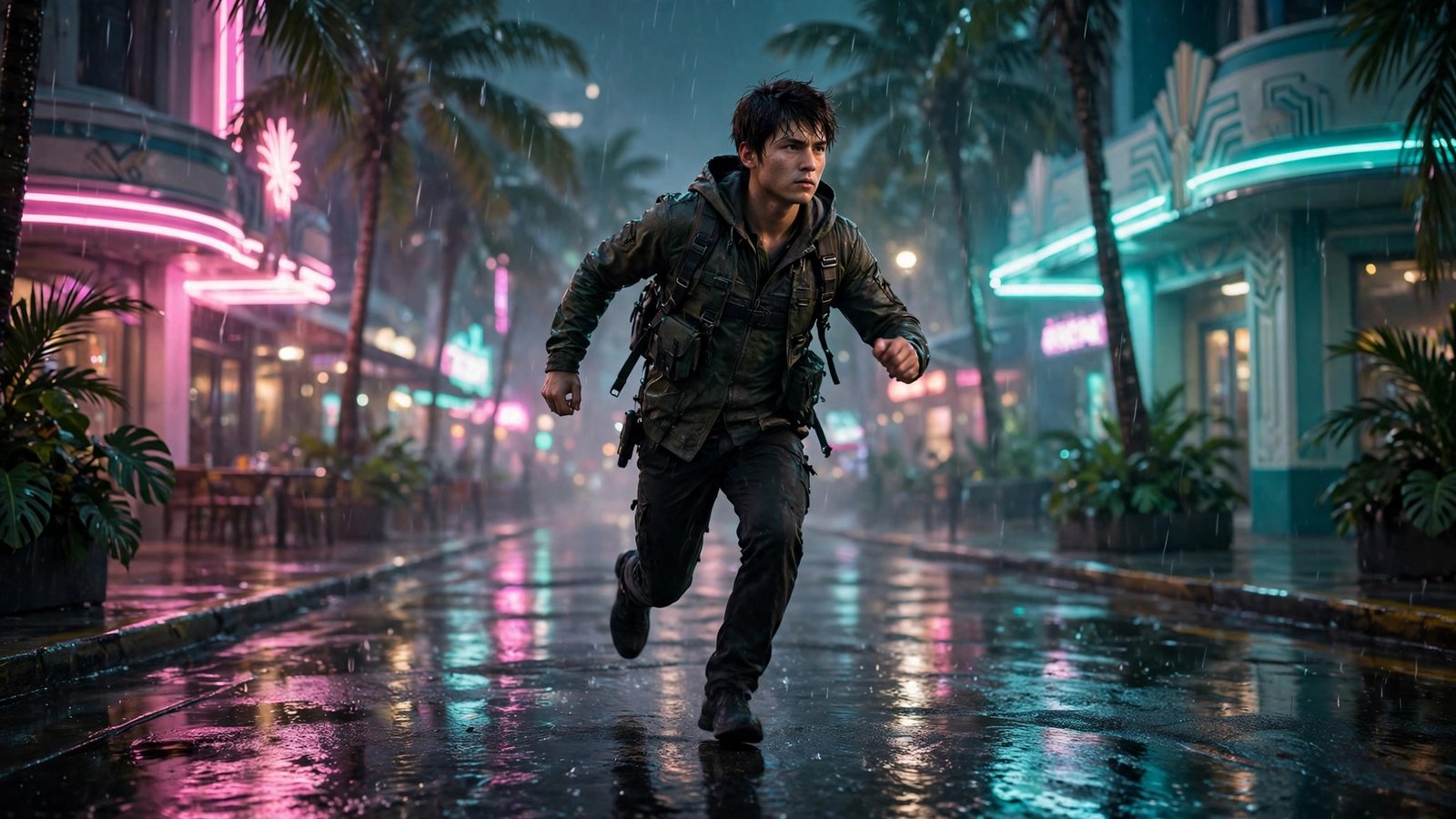
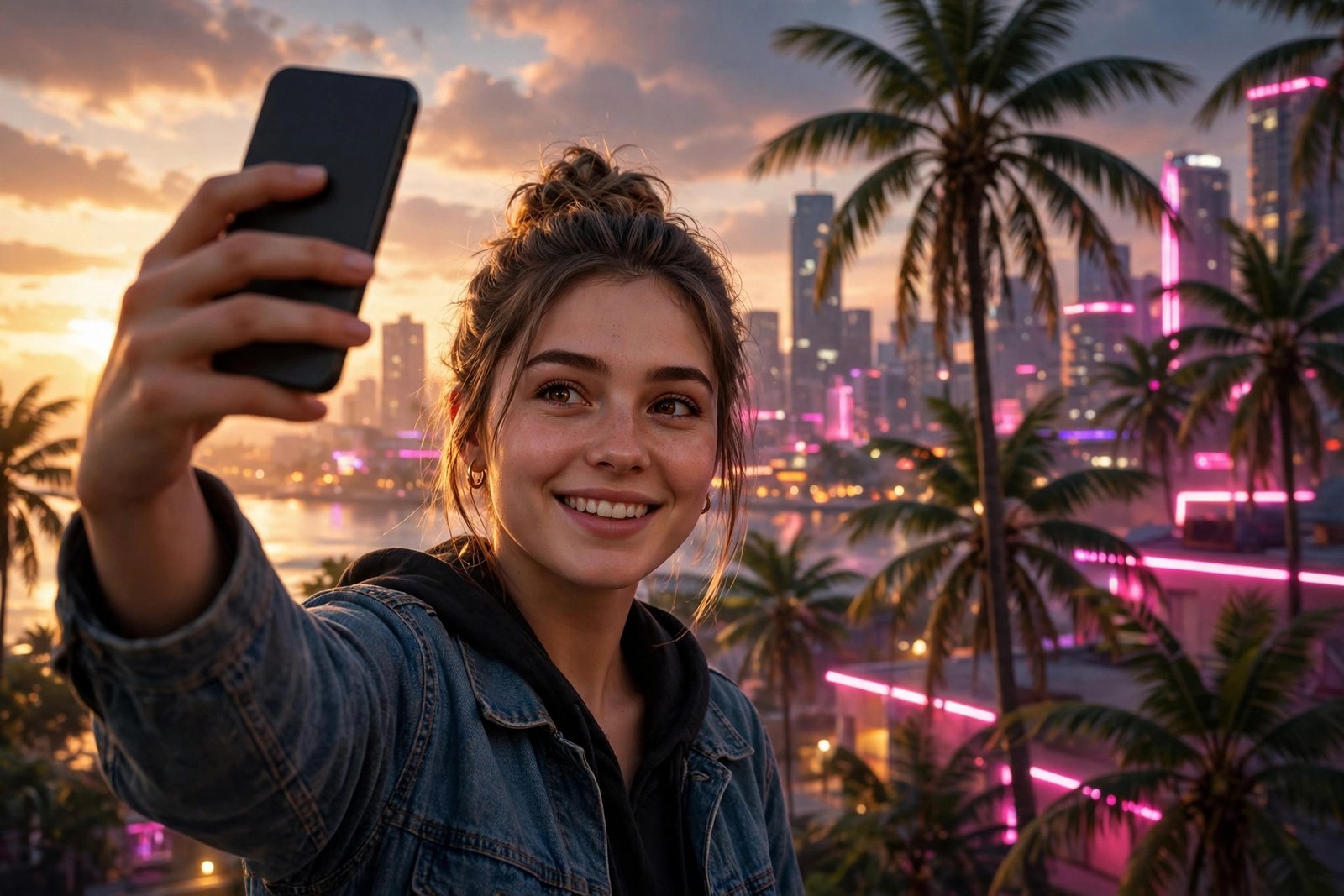
Photo Studio is for composed shots. For quick snaps and selfies, use the phone — Beebom reports the Camera app becomes available early in the game, once you take control of Jason after Lucia’s prologue.
- Press D-pad Up to bring up the phone.
- Open the Camera app — the third icon in the first row.
- Switch from the rear camera to the front-facing camera for selfie mode.
- Pick a pose and a facial expression. Beebom counts six poses and seven expressions for Jason — that count rests on one guide, so treat it as Reported.
- Press R2 (PS5) / RT (Xbox) to take the photo.
Two things make the phone camera more than a novelty. First, partner poses: if Lucia is with you while you play as Jason (or the reverse), she can pose in the frame with you — GameSpot, Beebom and HappyGamer all document partner posing. Second, the rear camera is a real camera: up to 5x zoom, grid lines and 17 filters (Confirmed: Beebom), with a flash toggle for night shots reported by GTA6Info. For anything posed, though, remember the division of labour: poses and expressions exist only in the phone’s selfie mode. Photo Studio cannot pose a character at all — if you want a specific stance in a Studio shot, you have to create the moment in gameplay first and then pause it.
Phone photos and selfies are saved to the Gallery app on the in-game phone. (Confirmed: HappyGamer, GTA6Info, Sportskeeda) Our GTA 6 controls guide covers the phone and camera inputs in the full control layout if you are rebinding anything.
Where Photo Studio Saves Go — and the Limits
Here the guides genuinely disagree, and we would rather show you that than pick a winner. Sportskeeda says photos saved in Photo Studio can be viewed in-game in the phone’s gallery, alongside phone photos. GTA6Info says Photo Studio shots go to your console’s capture gallery. Both agree on the separate point that screenshots taken with the console’s own system feature live in the console galleries — the PS5 Media Gallery or the Xbox capture gallery. The workflow that works regardless of which is right for a given shot type: compose in Photo Studio, press Hide UI (Triangle / Y), and capture with your console’s screenshot button as well as Save Photo. You will have the shot in at least one gallery, every time.
The limits, stated plainly so you do not waste an evening fighting them:
- No time-of-day control. Photo Studio cannot move the sun. Want a sunset shot, be somewhere photogenic at sunset — our GTA 6 Vice City locations guide is a good scouting list.
- No weather control. Rain, haze and clear skies are whatever the game is doing when you pause.
- No posing. Covered above — posing is a phone-selfie feature only.
- Cutscene restrictions. Some functions are unavailable during cutscenes and show as “Currently Unavailable”.
- No confirmed in-game sharing feature. No guide documents a direct upload or share function inside Photo Studio, so do not go looking for one — sharing runs through your console’s normal capture tools, the same as our GTA 6 gameplay coverage describes for clips.
None of this makes Photo Studio weak — the five-light rig and the depth-of-field tools put it well ahead of a bare screenshot button, and it pairs naturally with the game’s best settings if you are chasing the cleanest possible image. It just means the photographer’s workflow is: find the place, wait for the light, make the moment happen, then pause.
FAQ
How do I open Photo Mode in GTA 6?
Pause the game and select Photo Studio from the pause menu, or press Square on PS5 / X on Xbox on the pause screen. It is available from Lucia’s prologue with no unlock required.
Can I change the time of day or weather in Photo Studio?
No. Neither the time of day nor the weather can be changed inside Photo Studio — Beebom and the GTA6Info wiki both state this limit. Set up your scene in the world first, then pause and shoot.
How do I take a selfie in GTA 6?
Press D-pad Up, open the Camera app, and switch to the front-facing camera. Choose a pose and expression, then press R2 (PS5) or RT (Xbox). If your partner is with you, they can pose in the shot too.
Where are my GTA 6 photos saved?
Phone photos and selfies go to the Gallery app on the in-game phone. For Photo Studio, guides disagree — Sportskeeda says the shots are viewable in the in-game gallery, GTA6Info says they go to the console’s capture gallery. Capturing with Hide UI plus your console’s screenshot button guarantees a copy in the console gallery either way.
Can I use Photo Studio during cutscenes?
Yes, but with restrictions: some functions are unavailable during scripted scenes and appear as “Currently Unavailable”. The full tab set works in free gameplay.
How many lights can I place in Photo Studio?
Up to five separate light sources, each with adjustable colour, intensity and range, with presets such as stage lights and camera flashes. (GameSpot; Beebom; Sportskeeda)
GTA 6 World Hub is an independent fan publication and is not affiliated with Rockstar Games or Take-Two Interactive.